Installing Memos on Proxmox with Synology Backups
A step-by-step guide to running Memos in a Proxmox LXC with Synology NAS backups and secure remote access through Tailscale.
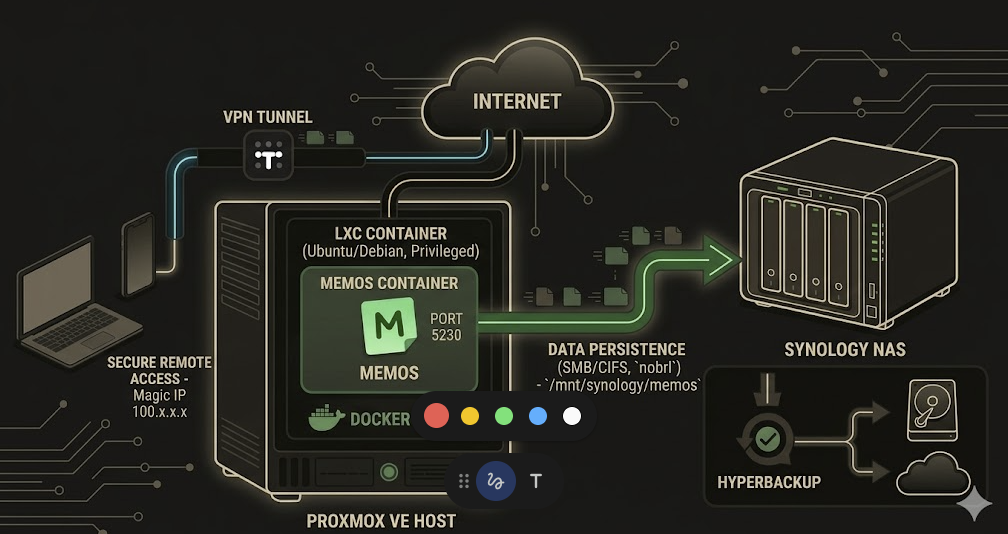
Objective: This guide documents the installation of Memos on a Proxmox server. In this lab, the LXC can be rebuilt because its data is stored on a Synology NAS over SMB. Actual protection depends on an active Hyper Backup job and periodically tested restores. Tailscale provides remote access without exposing the service directly to the internet.
Lab-specific decision: Memos uses SQLite by default. SQLite warns that network-filesystem synchronization and locking vary by implementation and may cause performance problems or corruption. The
nobrloption disables byte-range locking; it avoids certain CIFS locking errors, but does not make SMB universally safe for a live SQLite database. For a more robust deployment, keep the database on local storage and create consistent backups on the NAS, or use a supported client-server database. This guide documents the topology tested in this lab; it is not a general production recommendation.
Phase 1: Prepare the Environment (Synology and Proxmox)
The first step is to prepare both the NAS that will hold the data and the Proxmox LXC that will run the application.
1.1 Prepare the Synology NAS (SMB Share)
Create a dedicated Synology shared folder for the Memos container data.
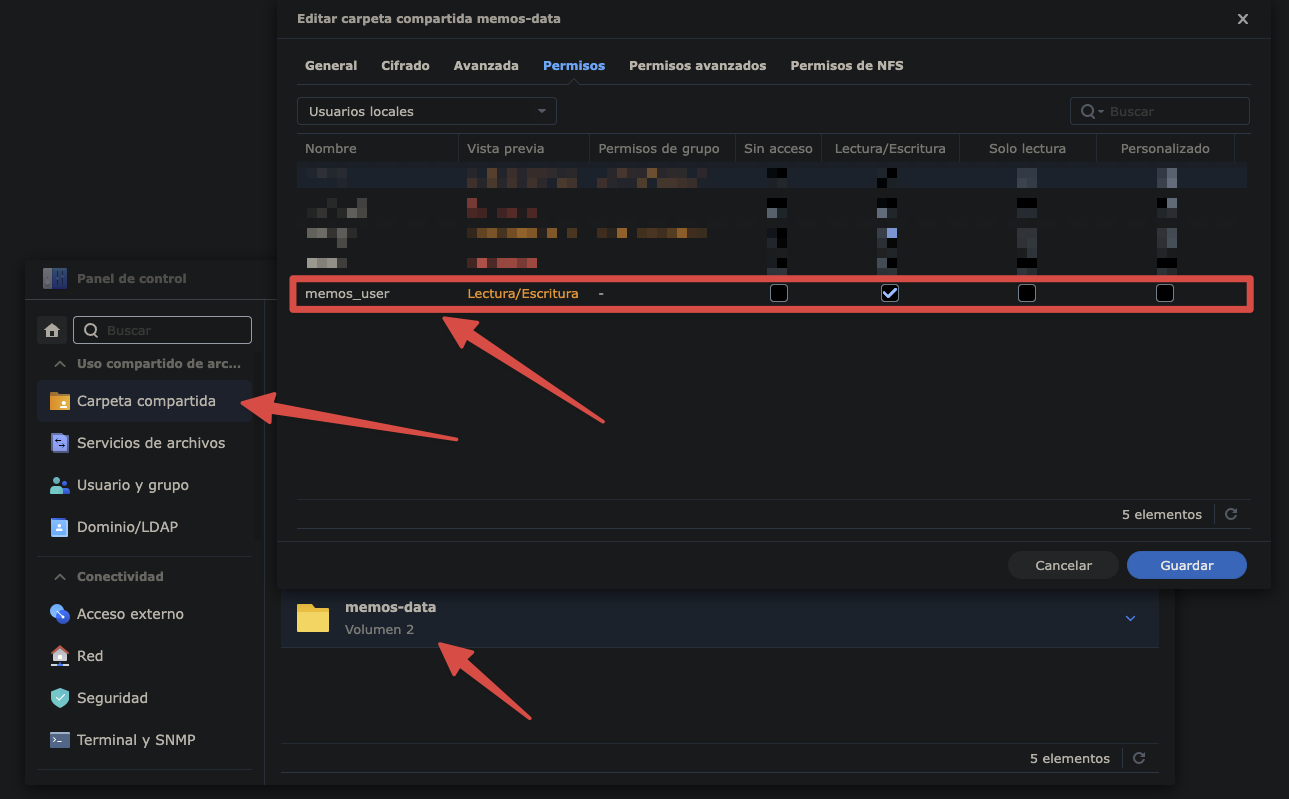
Steps:
- Sign in to the Synology DSM web interface.
- Go to Control Panel > Shared Folder.
- Create a shared folder—for example,
memos-data. - Optional but recommended: go to Control Panel > User & Group and create a dedicated user such as
memos_userwith a strong, unique password. - Return to the permissions for
memos-dataand grant Read/Write access tomemos_user, or to the account selected for this deployment.
1.2 Create the Proxmox LXC
An LXC shares the Proxmox host kernel, so it generally uses fewer resources than a full virtual machine.
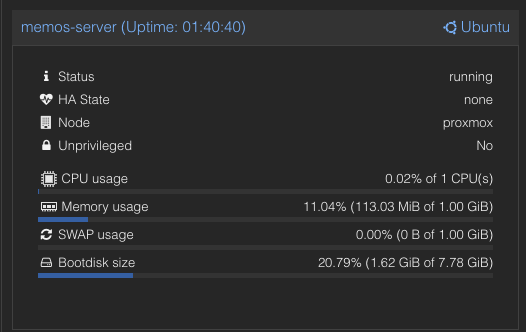
Steps:
- Sign in to the Proxmox web interface.
- Select Create CT in the upper-right corner.
- General tab:
- Set a hostname, such as
memos-server. - Choose a password for the
rootaccount. - Important: Clear
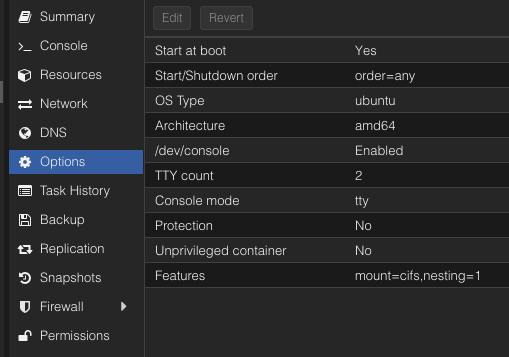
Unprivileged container. This lab uses a privileged container to simplify SMB mounting and nested Docker.
- Set a hostname, such as
- Template tab: Select an available base template such as
ubuntu-24.04-standardordebian-12-standard. - Disks tab: Allocate 8 GB. Docker and the operating system use the local disk; the application data is stored on Synology in this topology.
- CPU tab: Assign one or two cores.
- Memory tab: Allocate 1024 MB (1 GB).
- Network tab:
- Bridge:
vmbr0. - IPv4: Select
Staticand set192.168.8.99/24. - Gateway (IPv4):
192.168.8.1.
- Bridge:
- Enable SMB and Docker support: Before starting the container, open Options > Features and enable:
- SMB/CIFS, for the Synology share.
- nesting, which Docker requires inside this LXC.
- Finish creating the container and start it.
No internet connection in an Ubuntu 24.04 container? If startup fails with
Temporary failure resolving, bring up the interface manually from the container console:Baship link set eth0 up ip addr add 192.168.8.99/24 dev eth0 ip route add default via 192.168.8.1 echo "nameserver 1.1.1.1" > /etc/resolv.confReplace the example addresses with the values used by your network.
Progress log: Phase 1 completed. The static IP
192.168.8.99was configured in Proxmox and the LXC was created.
Phase 2: Configure Storage in the Container (SMB Mount)
The LXC is now available at 192.168.8.99. Next, mount the Synology shared folder so Memos can access it.
Steps:
-
In Proxmox, select the container and open Console.
-
Sign in as
rootwith the password chosen during setup.Receiving
Temporary failure resolving? The container may not have a DNS server configured. Edit/etc/resolv.conf, addnameserver 1.1.1.1, then save and exit. Alternatively, set1.1.1.1under Proxmox > Container > DNS > DNS servers and restart the container. -
Update the packages and install
cifs-utils:Bashapt update && apt upgrade -y apt install cifs-utils -y -
Create the local mount point:
Bashmkdir -p /mnt/synology/memos -
Store the Synology credentials in a separate file instead of placing them directly in
/etc/fstab:Bashnano /root/.smbcredentialsAdd the following placeholders and replace them with the dedicated Synology credentials:
Textusername=your_memos_user password=your_strong_passwordSave with
Ctrl+O, pressEnter, and exit withCtrl+X. -
Restrict the file so that only
rootcan read it:Bashchmod 600 /root/.smbcredentials -
Configure the share to mount when the container starts:
Bashnano /etc/fstabAdd the following line, replacing the NAS address and share name when necessary:
Text//YOUR_SYNOLOGY_IP/memos-data /mnt/synology/memos cifs credentials=/root/.smbcredentials,iocharset=utf8,file_mode=0777,dir_mode=0777,vers=3.0,nobrl 0 0Important (
nobrl): In this lab,nobrl(No Byte Range Lock) preventeddatabase is lockederrors over SMB. It disables that locking mechanism and carries the risk described at the beginning of this guide; do not copy it into a production deployment without evaluating data integrity and recovery. -
Mount the configured filesystems:
Bashmount -aNo output generally indicates that the mount succeeded.
-
Confirm the mount and available space:
Bashdf -hThe output should include the Synology volume mounted at
/mnt/synology/memos.
Progress log: Phase 2 completed. The Synology folder was mounted inside the container at
/mnt/synology/memos.
Phase 3: Install Docker and Deploy Memos
This phase installs Docker and runs Memos with its database and media files on the Synology path, following the lab-specific decision documented above.
Steps:
-
Install Docker for this lab: The following convenience script downloads and configures Docker in the LXC. Docker positions it for testing and development; for a stable environment, use Docker’s official
aptrepository and manage versions explicitly.Bashcurl -fsSL https://get.docker.com -o get-docker.sh && sh get-docker.shReceiving
sysctl net... permission deniedwhen Docker starts in Proxmox? Before downgrading or pinningcontainerd.io, inspect the container logs and verify compatibility between the installed Proxmox version, the LXC template, and Docker. A pinned version can become obsolete and miss security updates. Any downgrade should be temporary, documented, and checked against current documentation. -
Create a directory for the Memos Compose configuration:
Bashmkdir -p /opt/memos-docker cd /opt/memos-docker -
Create the Docker Compose file:
Bashnano docker-compose.ymlAdd the following configuration:
Yamlservices: memos: image: neosmemo/memos:stable container_name: memos restart: unless-stopped security_opt: - apparmor:unconfined ports: - "5230:5230" volumes: - /mnt/synology/memos:/var/opt/memosThe volume maps Memos’ internal data directory to the mounted Synology share.
-
Start Memos in the background:
Bashdocker compose up -d -
Check the container status:
Bashdocker ps
After a successful start, open http://192.168.8.99:5230 in a browser to reach the Memos welcome screen.
Progress log: Phase 3 completed. Memos is running on port 5230.
Phase 4: Configure Secure Remote Access with Tailscale
To access Memos from a phone outside the local network, install Tailscale in the container. The connection travels over the private Tailnet and does not require publishing port 5230 on the router.
Steps:
-
Install Tailscale: Run the official installer from the container console:
Bashcurl -fsSL https://tailscale.com/install.sh | shReceiving
Failed to start tailscaled.servicebecause/dev/net/tunis missing? Proxmox may block virtual devices even in a privileged LXC. Apply the configuration from the Proxmox host:-
In the main Proxmox interface, select the node—usually
proxmoxorpve—and open Shell. -
Run the following command once, replacing
103with the actual container ID:Bashecho -e "lxc.cgroup2.devices.allow: c 10:200 rwm\nlxc.mount.entry: /dev/net/tun dev/net/tun none bind,create=file" >> /etc/pve/lxc/103.conf -
Restart the container from the host:
Bashpct stop 103 && pct start 103
Return to the Memos container console after the restart.
-
-
Connect the node to your account:
Bashtailscale upOpen the authentication URL shown in the terminal and authorize the machine with the account used by your Tailnet.
-
Get the Tailscale IP:
Bashtailscale ip -4The address beginning with
100.x.x.xidentifies the container within the Tailnet. -
Connect from a mobile device:
- Install the Tailscale app and sign in.
- Disable Wi-Fi to test the mobile-data path.
- Open the Tailscale address in this format:
http://100.x.x.x:5230.
Common connection error (
ERR_CONNECTION_REFUSED) Include port:5230at the end of the address. Without it, the browser attempts to use port 80. This topology uses explicithttp://because Memos has no local TLS certificate; traffic between Tailnet nodes remains protected by Tailscale.
Memos is now available from the authorized devices in the Tailnet.
Final Demonstration
The following video shows Memos running through the private tunnel:
Progress log: Phase 4 completed. Remote access was enabled through the Tailnet without router port forwarding.