Silakka54: Programmable Ergonomics
My experience building and configuring the Silakka54 keyboard.
Silakka54: My Introduction to Split Keyboards and Programmable Ergonomics
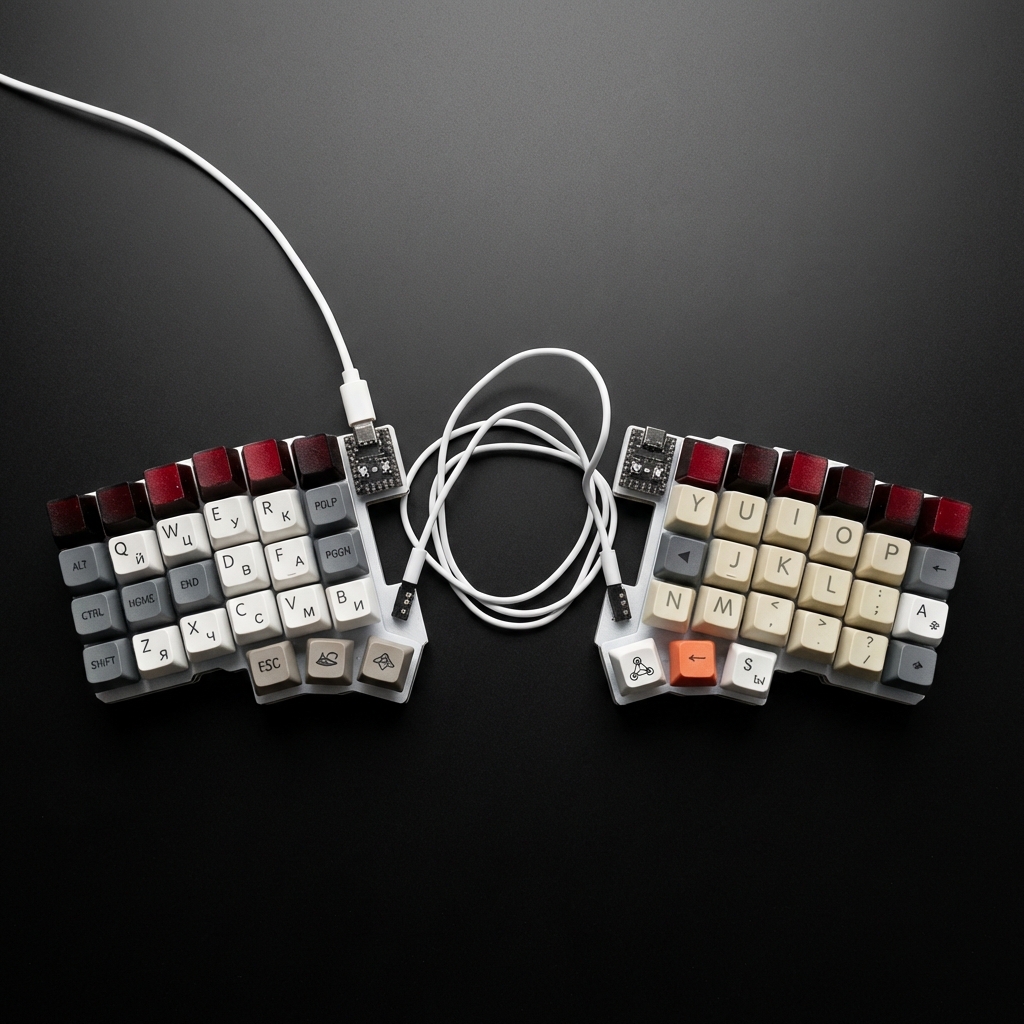
In the technology world, our obsession often centers entirely on software: we search for the definitive Linux distribution or push our desktop environment to its limits. I know that rabbit hole well. I have spent entire days refining my DWM setup on Arch Linux, working through builds and patches that occasionally compromised system stability. Although that setup is now archived, it played an important role in how I learned. Yet amid all that logical optimization, we often neglect the critical physical interface that connects us to the machine: the keyboard.
Although macOS has been my primary environment for years, recently adding Aerospace as a tiling window manager exposed an unexpected source of friction: optimizing the operating system is of little value if the physical interface remains a bottleneck.
To address that problem, I switched to the Silakka54 two months ago. This was more than adopting ergonomic hardware with a column-staggered layout; it represented a complete change in approach. This technical note explains how I used Vial to design a deliberately constrained keymap. Although the device includes a physical number row, my configuration intentionally ignores some of those keys. The goal is twofold: improve my development and system administration workflow, and train my muscle memory for an eventual move to an even more compact layout.
Usage Philosophy: Simulating a Corne on a Silakka54
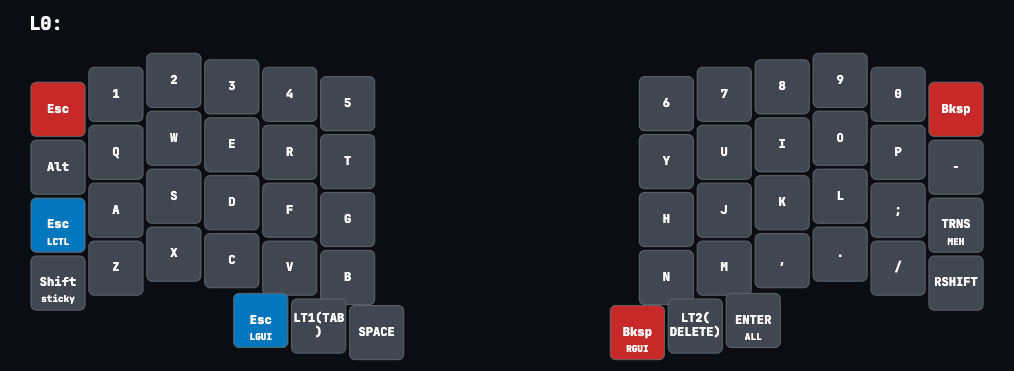
The Silakka54 has 54 keys, including a number row and dedicated Backspace and
Esc keys in the corners. I do not use them.
My current philosophy is “Home Row Supremacy.” I have deliberately trained myself to ignore the top row.
- The goal: Keep my fingers from stretching more than one key away from their resting position.
- The reasoning: Use this keyboard as preparation for eventually moving to a 3x6 Corne. The Silakka54 is an excellent entry point because its extra keys remain available as a safety net, reducing the initial anxiety. The discipline comes from choosing not to rely on them.
Keymap Engineering: Logic over Brute Force
Looking at my .vil configuration file, several logical choices stand out as
solutions to physical problems.
1. Combos and Eliminating Unnecessary Reach
Instead of stretching my little finger toward the upper-left corner to press
Escape—a repetitive and uncomfortable movement for Vim users—I created a
combo:
J+K=ESCAPE: Pressing these two home-row keys simultaneously makes the firmware sendEsc. I can leave a Vim mode or cancel a dialog without moving my hands away from their resting position.
2. Optimizing SQL: Caps Word and Smart Shift
As a Systems Analysis student, I write a considerable amount of SQL. Reserved
words such as SELECT, FROM, and WHERE are conventionally written in
uppercase, and repeatedly toggling a traditional Caps Lock is inefficient.
- Caps Word: Pressing both Shift keys at the same time activates Caps Word.
It keeps letters uppercase while I type and turns itself off when I press
Space, which makes writing SQL queries more fluid. - Traditional Caps Lock: When I need a persistent uppercase mode, such as for a long constant, I double-tap my left Shift key. It is configured as a One Shot Modifier and keeps the uppercase state active until I release it.
3. “Super Keys”: Hyper and Meh
To avoid collisions with native macOS and application shortcuts, I configured compound modifier keys that do not exist on a conventional keyboard:
- Hyper (
ALL_T): This key sits under my right thumb and sendsEnterwhen tapped. When held, it sendsCtrl + Shift + Alt + Guisimultaneously. I reserve it for Aerospace window-management shortcuts. For example,Hyper+Jis always an operating-system command and never conflicts with a browser or editor shortcut. - Meh: Positioned on the left hand, this key sends
Ctrl + Shift + Alt. I use it to launch custom scripts and applications without interfering with base system shortcuts.
4. Thumb-Cluster Ergonomics: Using the Strongest Fingers
Traditional keyboard design has a fundamental inefficiency: an oversized space bar occupies both thumbs’ working area, yet most people press it with the same thumb every time. Two of the hand’s strongest and most versatile fingers are reduced to a single function.
On my Silakka54, the thumb clusters are the system’s control center. Critical functions follow a Tap vs. Hold rule: tapping a key performs one action; holding it performs another.
This is how I currently distribute that workload:
-
Right hand — editing and control:
-
Backspace/Super:
Backspaceno longer lives in the distant upper-right corner. It is assigned to my right thumb throughRGui_T: a tap deletes, while a hold acts as the Super key (Commandon macOS and the Windows key on Windows). Deleting changes from a lateral extension of the weakest finger to an opposing movement by the thumb. -
Delete/Navigation: The center key (
LT 2) sendsDeletewhen tapped and opens Layer 2, where the navigation arrows live, when held.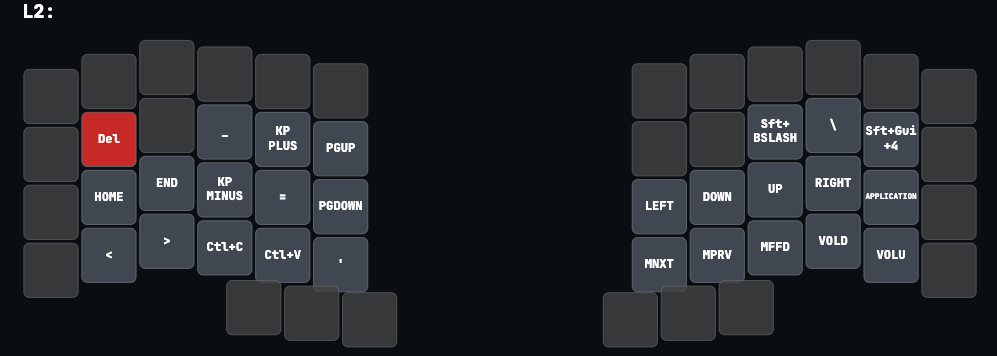
-
Enter/Hyper: The outer key (
ALL_T) sendsEnterwhen tapped and becomes Hyper when held. I use that modifier exclusively for global window-management shortcuts, keeping them isolated from application-level bindings.
-
-
Left hand — flow and context:
-
Esc/Super: Mirroring the right side, my left thumb key (
LGui_T) sendsEscapewhen tapped—essential for Vim—and acts as a second Super/Command key when held. This lets me trigger system shortcuts with either hand. -
Tab/Symbols: The
Tabkey (LT 1) also opens Layer 1, which holds symbols and numbers. Special characters become as accessible as a shifted key.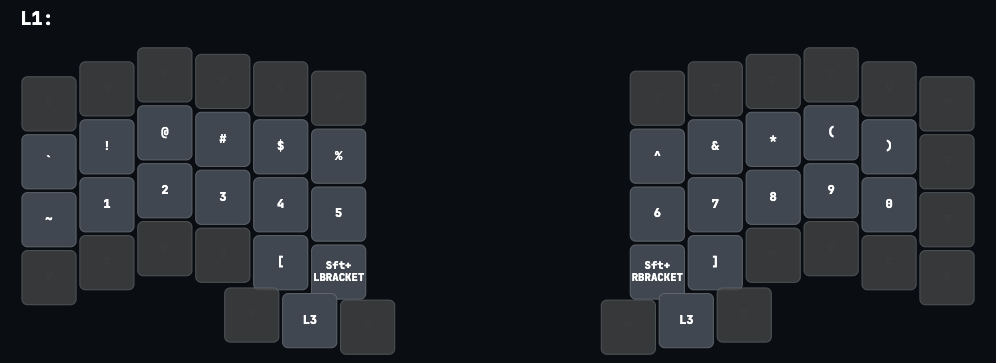
-
Space: This is the only thumb key I kept as a single-purpose control. Because it is by far the most frequently used key, I deliberately avoided assigning it dual Mod-Tap behavior. I cannot perceive a delay on the other keys, but for
SpaceI prefer an immediate, unambiguous response. Even a small processing delay could disrupt fast typing, so it remains dedicated to inserting spaces.
-
This layout reduces fatigue and keeps my hands on the home row, assigning complexity to the thumbs instead of the wrists.
5. Tri-Layer Logic and the Power of QMK/Vial
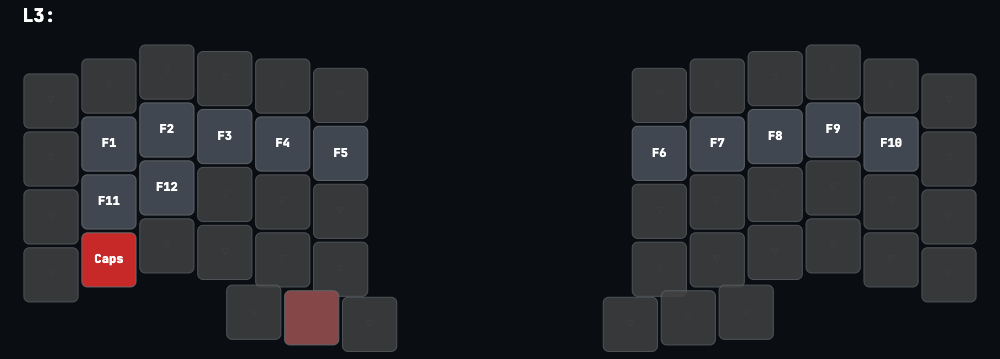
One of the most useful pieces of logic in my configuration is access to Layer 3. Instead of dedicating a physical key to it, I use QMK/Vial’s Tri-Layer behavior:
- Pressing the Layer 1 key with my left thumb and the Layer 2 key with my right thumb activates Layer 3.
It is an elegant solution for functions I need only occasionally. This
“boring” layer contains the function keys (F1–F12) and a traditional Caps
Lock, which sits mostly unused because I prefer Caps Word. The controls are
available when needed and invisible the rest of the time.
This flexibility demonstrates the real strength of a keyboard running QMK/Vial. Even with my current configuration, several layers remain unused. I eventually want to turn them into system modes: a key combination could change the keyboard’s internal behavior depending on whether I am using Windows or Linux, automatically remapping shortcuts and modifiers without changing the computer’s software configuration.
Conclusion
After two months, the column-staggered layout feels natural. More importantly, I learned that I do not need more keys; I need better logic. The Silakka54 has let me prototype my ideal workflow, reducing fatigue and improving speed through programmable behavior. My next goal is a move to more minimalist hardware, such as a Corne, but the conceptual transition is already complete.
Resources
If you want to explore my configuration, the silakka54_main.vil file and
related material are available in my repository: